

Creating an appointment booking website in WordPress is easier than you might think! Whether you're running a salon, medical practice, consulting business, or any service-based company, having an online booking system can significantly streamline your operations and improve customer experience. Here's your comprehensive step-by-step guide.
Why Build a WordPress Appointment Booking Website?

Key Benefits:
- 24/7 Availability: Customers can book appointments anytime, even outside business hours
- Reduced No-Shows: Automated reminders and confirmations help reduce missed appointments
- Streamlined Operations: Less time spent on phone calls and manual scheduling
- Professional Image: Shows your business is modern and customer-focused
- Better Organization: All appointments in one centralized system
Step-by-Step Guide to Build Your Booking Website
1. Choose Your Domain and Hosting
Domain Selection Tips:
- Keep it short and memorable
- Include keywords related to your business (e.g., "beautysalon", "coaching")
- Use .com extension if possible
- Avoid hyphens and complex spellings
Hosting Recommendations:
- Look for WordPress-optimized hosting
- Ensure SSL certificates are included
- Choose providers with good support and uptime
- Consider managed WordPress hosting for better performance
2. Install WordPress
Most hosting providers offer 1-click WordPress installation, making this step straightforward. After installation, you'll have access to your WordPress dashboard, where you can customize your site.
3. Select the Right WordPress Theme
Choose a theme that's specifically designed for appointment-based businesses. Here are some excellent options:
Recommended Appointment Booking Themes:
| Theme | Best For | Price | Key Features |
|---|---|---|---|
| CoachZee | Life coaches, consultants, trainers | From $49 | 5+ demos, built-in appointment booking, mobile-friendly |
| Edme | Tutors, teachers, education | From $49 | Course management, teacher profiles, lesson booking |
| Restline | Massage therapists, spas | From $49 | Calming design, treatment listings, staff management |
| Medmix | Medical practices, therapists | From $49 | Clean clinical layout, multiple practitioners support |
| Bro Barbershop | Barbershops, salons | Free | Bold design, real-time availability |
4. Choose the Best WordPress Booking Plugin
The plugin is the heart of your booking system. Here are the top options for 2024:
Premium Booking Plugins
1. Amelia - Most Popular Choice
- Price: From $59/year
- Best For: Multi-service businesses, complex scheduling needs
- Key Features:
- Employee management with individual schedules
- Group bookings and events
- Multiple payment gateways (PayPal, Stripe, Mollie)
- Email and SMS notifications
- Google Calendar sync
- Customer panels for managing bookings
- Multi-location support
2. BookingPress - Most Affordable Premium Option
- Price: From $49/year
- Best For: Small to medium businesses
- Key Features:
- Drag-and-drop form builder
- Staff scheduling with buffer times
- Deposit payments and coupons
- WhatsApp notifications
- Custom fields
- Google Calendar integration
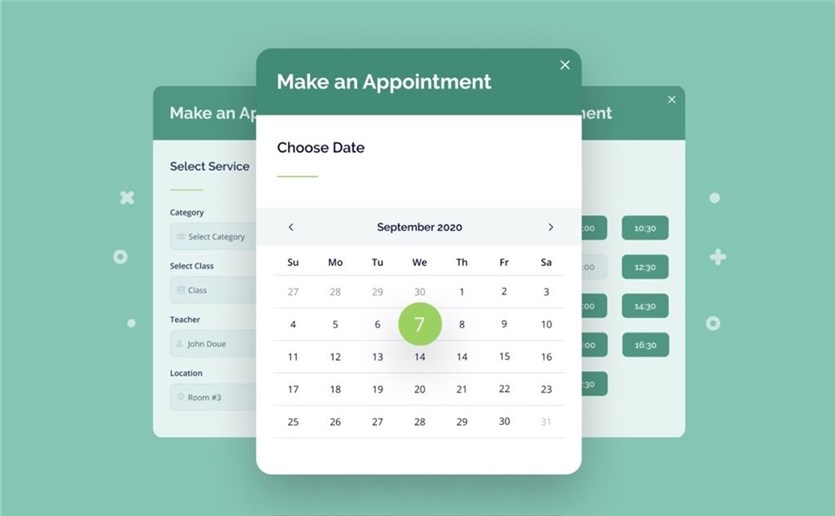
3. MotoPress Appointment Booking - Great All-Rounder
- Price: From $49/year
- Best For: Service businesses, consultants
- Key Features:
- Unlimited services and employees
- Group appointments
- Multiple payment methods
- Email automation
- Google Calendar sync
- Elementor and Gutenberg integration
Free Booking Plugins
1. Simply Schedule Appointments (SSA)
- Price: Free (Pro version available)
- Best For: Simple appointment scheduling
- Features: Basic booking forms, email notifications, calendar sync
2. Easy Appointments
- Price: Free
- Best For: Basic appointment needs
- Features: Simple booking system, email confirmations, basic customization
3. Booking Calendar
- Price: Free (Premium available)
- Best For: Accommodation and basic appointment booking
- Features: Calendar display, booking management, email notifications
Detailed Setup Process (Using MotoPress as Example)
Step 1: Configure General Settings
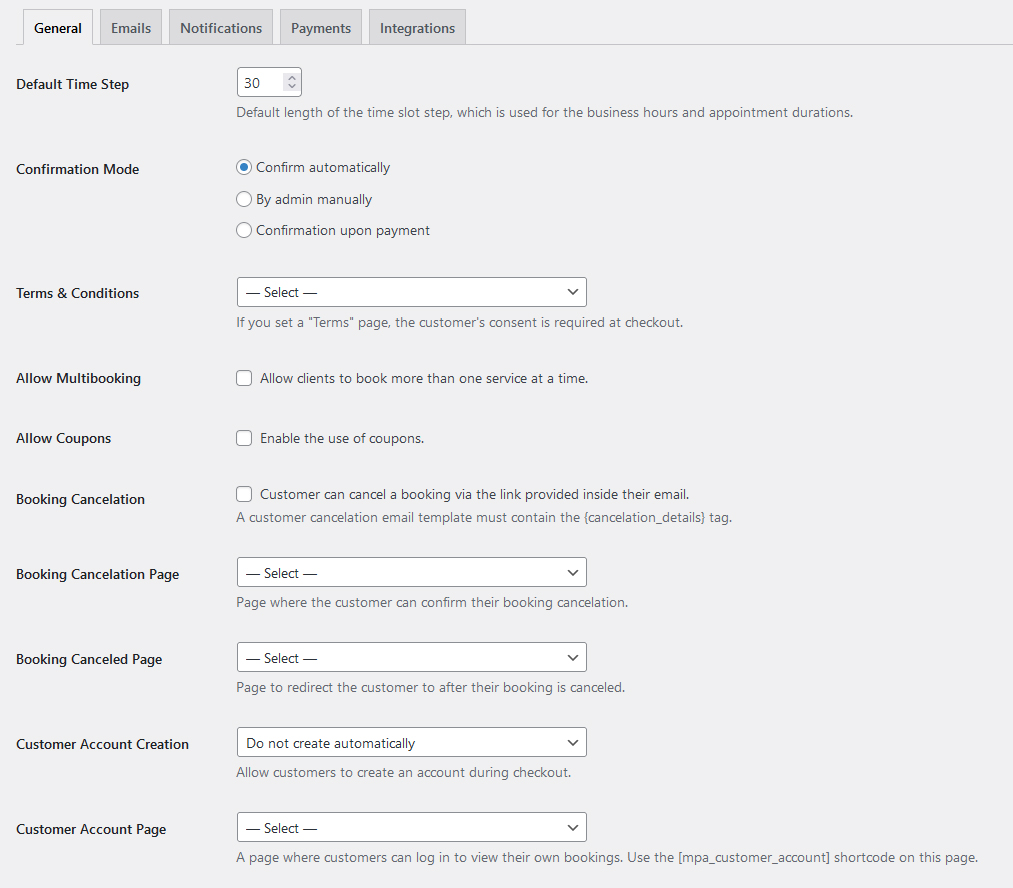
Navigate to Appointments > Settings > General and configure:
- Time slot duration (15, 30, 60 minutes)
- Booking confirmation mode (automatic, manual, or payment-required)
- Terms & conditions
- Multi-booking options
- Discount coupons
- Customer accounts
- Default currency and country
Step 2: Add Locations
Go to Appointments > Locations to add:
- Office/clinic addresses
- Contact information
- Operating hours per location
Step 3: Set Up Staff/Employees
Add team members in Appointments > Employees:
- Upload photos and bios
- Set individual schedules
- Connect Google Calendars
- Define service assignments
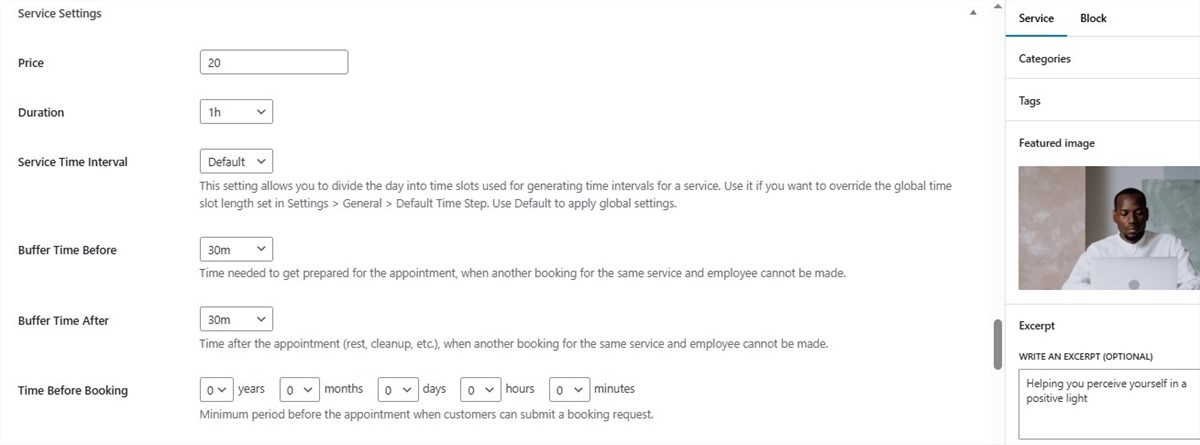
Step 4: Create Services
Navigate to Appointments > Services to add:
- Service names and descriptions
- Duration and pricing
- Buffer times (preparation/cleanup)
- Maximum capacity for group bookings
- Eligible staff members
- Advance booking windows
Step 5: Configure Payment Methods
Set up payment options in Appointments > Settings > Payments:
- PayPal: Easy setup for online payments
- Stripe: Credit card processing
- Direct bank transfer: For offline payments
- Pay on-site: Cash or card at appointment
Step 6: Customize Email Templates
Personalize automated emails in Appointments > Settings > Emails:
- Booking confirmations
- Reminder emails
- Cancellation notifications
- Follow-up messages
Step 7: Add Booking Form to Your Website
Option 1: Using Blocks (Gutenberg/Elementor)
- Add the appointment booking block to any page
- Customize appearance and settings
- Preview and publish
Option 2: Using Shortcodes
- Generate shortcode in Appointments > Shortcodes
- Copy and paste into any page or post
- Customize parameters as needed
The Customer Booking Experience
Here's what your customers will see when booking:
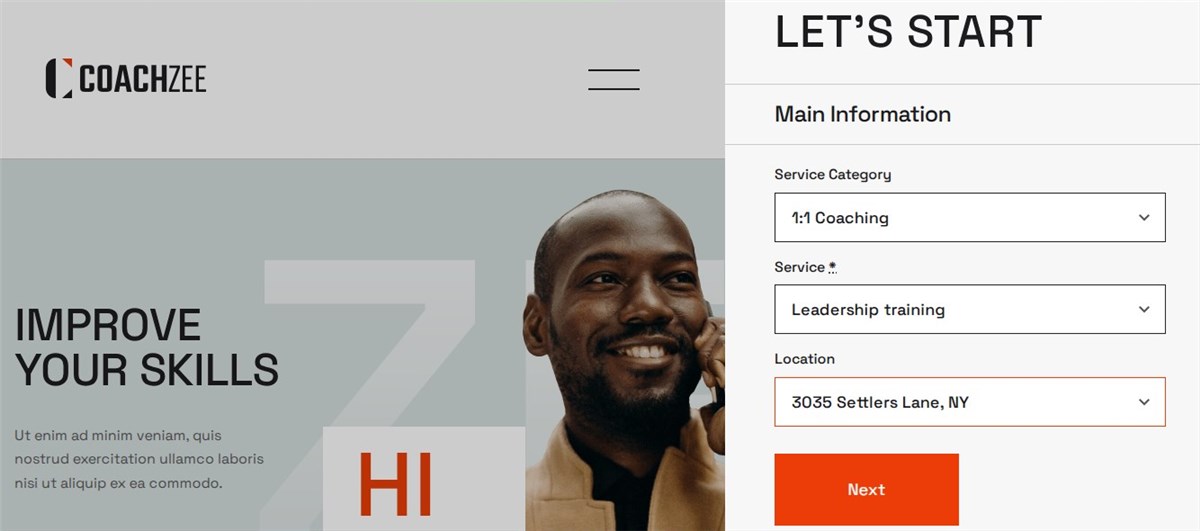
Step 1: Select the service category and the specific service
Step 2: Choose preferred date and available time slot.
Step 3: Select the number of people (for group bookings)
Step 4: Provide personal information
Step 5: Choose payment method
Step 6: Receive booking confirmation
Advanced Features and Add-ons
Video Conferencing Integration
- Zoom meetings
- Google Meet links
- Automatic meeting creation
SMS Notifications
- Twilio integration
- Appointment reminders
- Booking confirmations
Analytics and Reporting
- Google Analytics integration
- Booking performance metrics
- Revenue tracking
- Customer insights
WooCommerce Integration
- Sell appointment packages
- Product upselling
- Advanced checkout options
Essential Pages for Your Booking Website
Create these important pages:
- Homepage: Introduction, services overview, prominent booking button
- Services: Detailed service descriptions, pricing, duration
- About: Your story, qualifications, team information
- Booking: Main appointment scheduling page
- Contact: Address, phone, email, social media links
- FAQ: Common questions about the booking process
- Privacy Policy: Required for data collection compliance
Marketing Your Booking Website
Search Engine Optimization (SEO)
- Use location-based keywords
- Optimize service pages
- Create helpful blog content
- Get customer reviews
Social Media Integration
- Share the booking link on social platforms
- Post customer testimonials
- Showcase your work/results
- Run targeted ads
Email Marketing
- Collect customer emails
- Send appointment reminders
- Share promotions and tips
- Follow up after appointments
Local Marketing
- Google My Business optimization
- Local directory listings
- Print materials with the booking URL
- Partner with complementary businesses
Video Tutorials for Visual Learners
Here are some excellent video tutorials to help you get started:
How to Build an Appointment Booking Website with WordPress - WPBeginner Tutorial (13:05)
How To Make An Appointment Booking Website With WordPress and Bookly - Comprehensive 2+ hour tutorial
Best WordPress Booking Plugins in 2024 - Plugin comparison guide
Cost Breakdown
Basic Setup (Free Option)
- Domain: $10-15/year
- Hosting: $50-100/year
- Free theme: $0
- Free plugin: $0
- Total: $60-115/year
Professional Setup (Recommended)
- Domain: $10-15/year
- Premium hosting: $100-200/year
- Premium theme: $49-99
- Premium plugin: $49-99/year
- Total: $208-413/year
Enterprise Setup
- Domain: $10-15/year
- Managed hosting: $200-500/year
- Premium theme: $99
- Premium plugin + add-ons: $150-300/year
- Total: $459-914/year
Best Practices for Success
User Experience
- Keep the booking process simple (3-5 steps max)
- Make it mobile-responsive
- Provide clear pricing information
- Include helpful descriptions and images
Business Operations
- Set realistic time slots and buffers
- Configure automatic reminders
- Have clear cancellation policies
- Regularly update availability
Customer Communication
- Send confirmation emails immediately
- Provide appointment details and location
- Include contact information for questions
- Follow up after appointments
Common Challenges and Solutions
Challenge: Too many no-shows
Solution:
- Implement deposit requirements
- Send multiple reminders
- Have a clear cancellation policy
- Follow up with missed appointments
Challenge: Double bookings
Solution:
- Sync with Google Calendar
- Set proper buffer times
- Regular availability updates
- Staff training on system use
Challenge: Customer confusion
Solution:
- Clear service descriptions
- Simple booking flow
- FAQ page
- Contact support options
Maintenance and Updates
Regular Tasks
- Update WordPress, theme, and plugins
- Backup website regularly
- Monitor booking performance
- Review customer feedback
- Update service information
Monthly Reviews
- Analyze booking patterns
- Adjust pricing if needed
- Update staff schedules
- Check email deliverability
Conclusion
Building an appointment booking website with WordPress is a smart investment for any service-based business. With the right combination of theme and plugin, you can create a professional booking system that operates 24/7 and significantly improves your customer experience.
Quick Action Steps:
- Choose your hosting and domain
- Install WordPress
- Select an appointment booking theme
- Install and configure a booking plugin
- Test the booking process thoroughly
- Launch and promote your new booking system
The plugins mentioned above (Amelia, BookingPress, and MotoPress) all offer excellent solutions, with the choice depending on your specific needs, budget, and technical requirements. Start with a free option if you're just testing the waters, then upgrade to a premium solution as your business grows.
Remember to test your booking system thoroughly before launching, and don't hesitate to reach out to plugin support teams if you need help with configuration. A well-set-up appointment booking website can transform how you manage your business and serve your customers!
Resources: